Door or entrance stations programmed in Remote Management can be registered with IP PBX clients to call SIP Extensions or phone numbers. This article goes over the settings configured in Remote Management. For IP PBX specific instructions, find the provider on this page: https://www.aiphone.com/partners/integrations/. These instructions show the IXG Support Tool for the Aiphone steps, but IP PBX integration steps will be the same.
These instructions assume the site has already been configured outside of IP PBX registration. To get started on system programming, see this guide: https://www.aiphone.com/kbtopic/aiphonecloud/.
Registering Stations
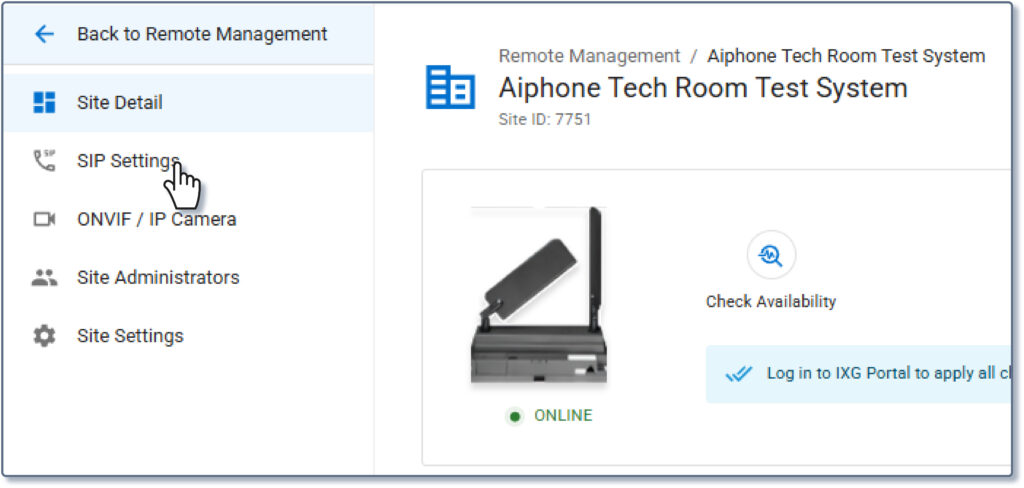
Log into AiphoneCloud, navigate to Remote Management, and select the appropriate site. From the home screen, select SIP Settings.
Click Edit.

The SIP Registration page is where the stations are pointed at the IP PBX. Fill in the Primary Server ID, which is usually the extension the station will be assigned in the IP PBX. Also add appropriate credential, the IP PBX’s IP address or Host Name, and which port will be used to connect. The same information can be entered by clicking the + symbol next to Add Secondary Server, if a backup IP PBX will be used. Once everything is finished, click Save.

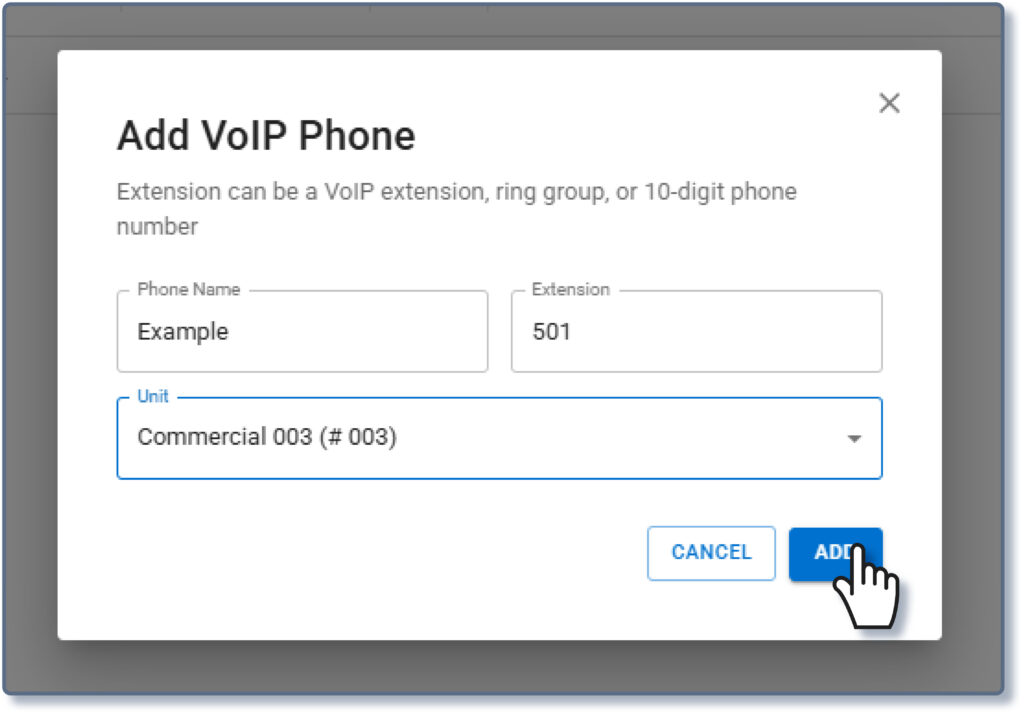
Click SIP DESTINATIONS to enter the extensions that stations will call to. Click +ADD VOIP PHONE.

Fill in the Phone Name and Extension, then use the drop-down menu to assign the extension to an existing unit, or to automatically create a new unit to contain it. Click ADD. Repeat these steps as needed for additional extensions. Note: A station can only call one extension at a time. If multiple extensions need to be called at once, configure a call or hunt group in the IP PBX, and enter that shared extension on this page instead.
Navigate back to Site Details for the next steps.
Door Station Settings
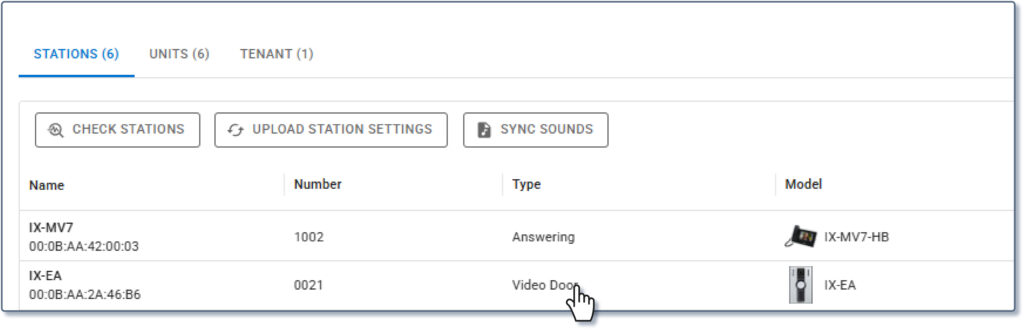
To configure a door station to call the newly registered station, select the station from the home page.
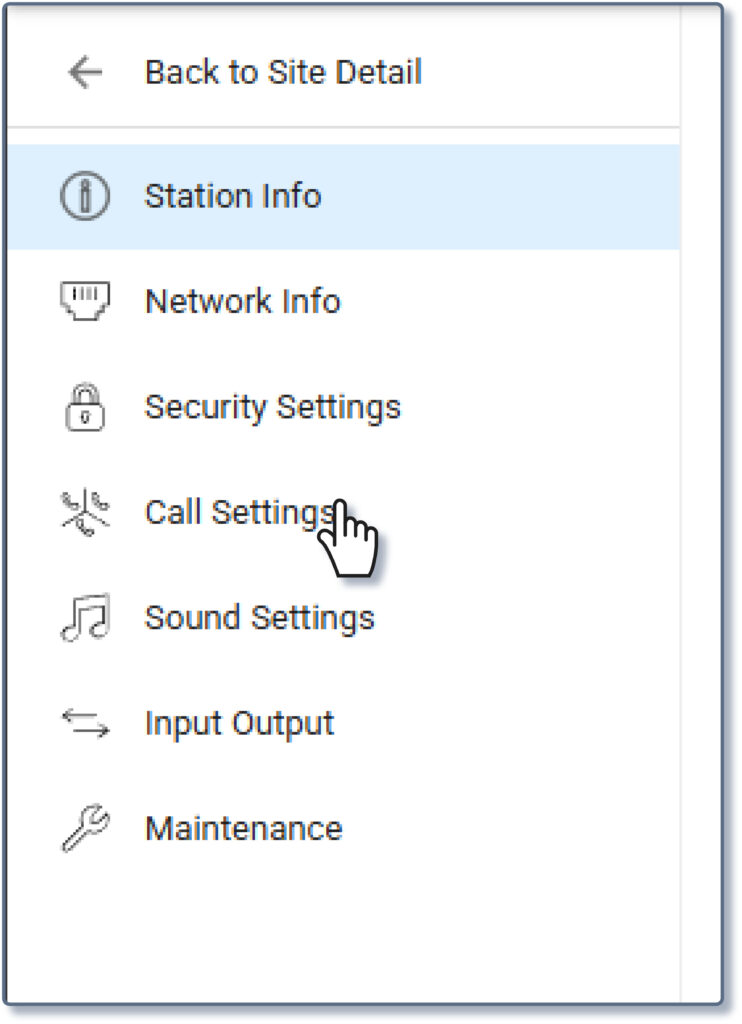
Select Call Settings.
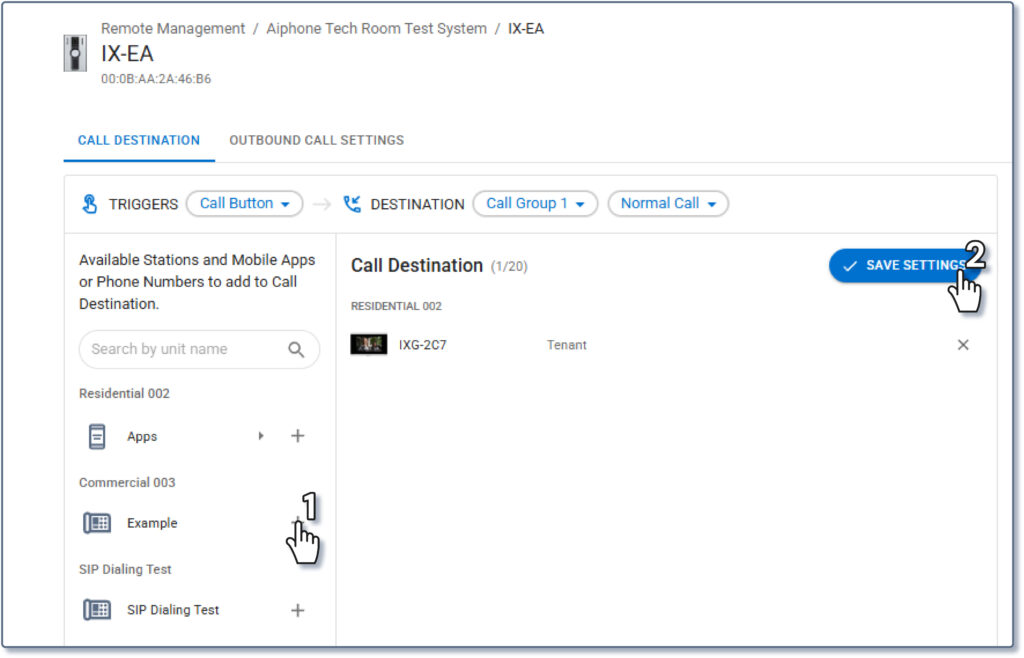
Click the plus symbol next to the extension to add it to the door station’s call group. Once everything is correct, click Save. Return to Site Details for the next steps.
Entrance Station Settings
To configure an entrance station to call a SIP extension, select it from the home page.
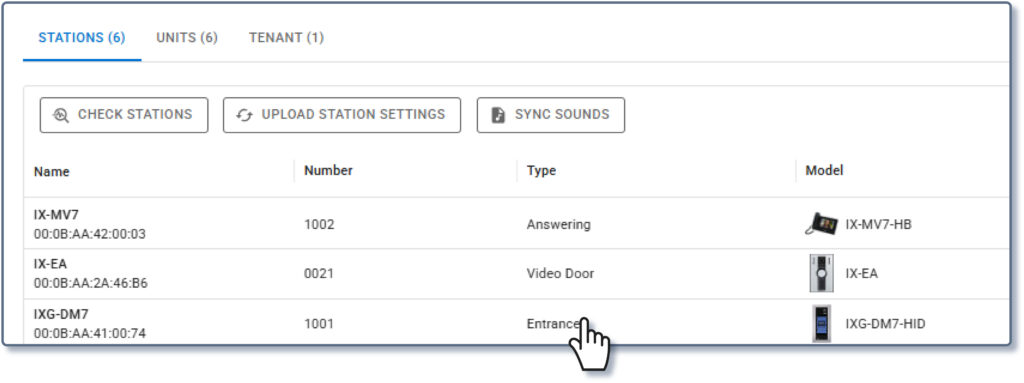
Select Address Book.

Verify that the unit containing the extansion is in the entrance station’s address book. If it is not, click the + symbol next to it, then click SAVE SETTINGS.

See this page for more entrance station settings, including how to configure a call button for any newly added units: https://www.aiphone.com/kb/remote-management-guide-entrance-station-settings/.
Return to Site Details for the next steps.
Answering Station Settings
If an answering station (IX-MV7 or IXG-MK) needs to be able to call an extension, the extension needs to be added to its address book. Select the station from the home screen.

Navigate to Address Book.

Click the + symbol to add the desired extensions and stations to the address book, then click SAVE SETTINGS. Return to Site Details for the next steps.

Door Release Settings (Optional)
Each door and entrance station is assigned a twenty digit code for door release when it is created. This can be entered by a telephone in communication with the station to unlock the door. To shorten the code to something shorter, select the station from the home screen.
Navigate to Input Output.

Select OUTPUT, then enter the desired Door Release Code. Once the settings are correct, click SAVE SETTINGS. Repeat these steps for each door or entrance station. Return to Site Details for the next steps.

Applying Settings to Stations
From the main screen, click Upload Station Settings. Once the settings have been uploaded to the stations, click the yellow If mobile apps are used on the site, also click Save Mobile App Settings; while they cannot interact with the SIP extensions, it is best practice to make sure that all settings are synchronized across the system.

With this, the stations will be registered to call the designated SIP extensions.